HomeFeaturesPluginsDocsDownload
Features

Every table, every engine, one calm workspace

From writing a query to committing an edit and shipping an export — the whole loop lives in one native app.

Connections

One tree for every database

Relational, document and key-value engines live side by side. Group connections into folders, see live connection status, and jump between schemas without losing your place.
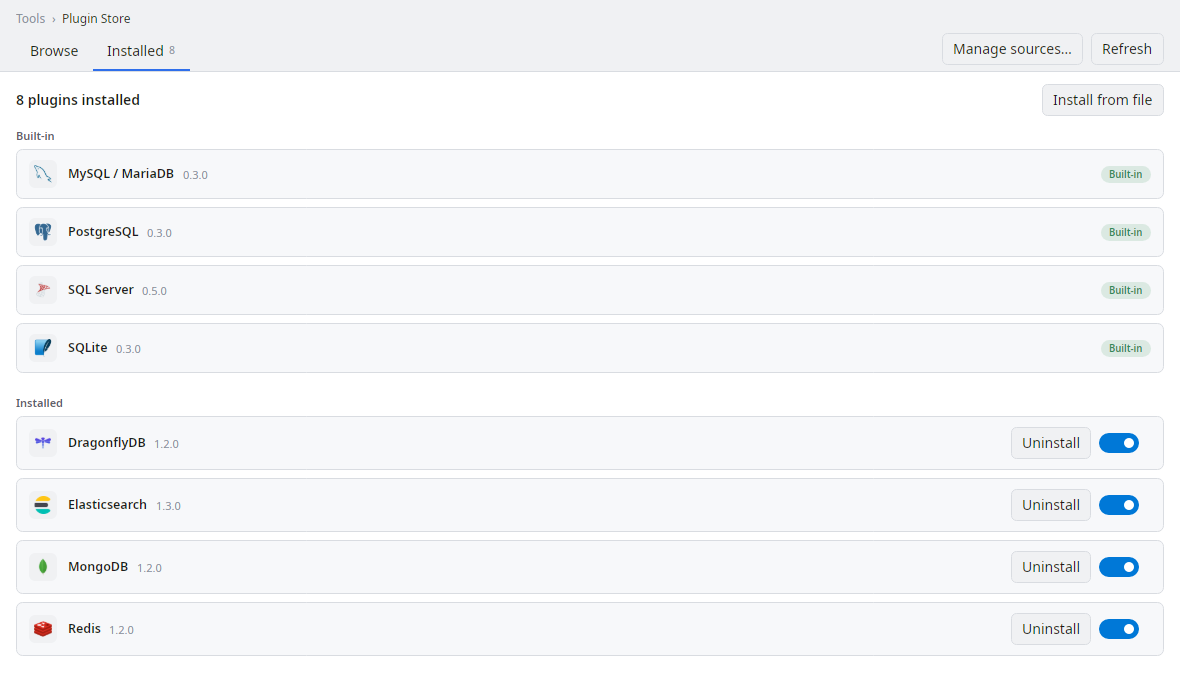
  • Built-in: PostgreSQL, MySQL, SQL Server, SQLite
  • Via plugins: MongoDB, Redis, DragonflyDB, Elasticsearch
  • Secrets stored in the OS keychain, never in plain text
DataTray — Plugin Store
The Plugin Store listing installed database engines: PostgreSQL, MySQL, SQL Server, SQLite, MongoDB, Redis, DragonflyDB and Elasticsearch
Query editor

Write, run, save — keep your flow

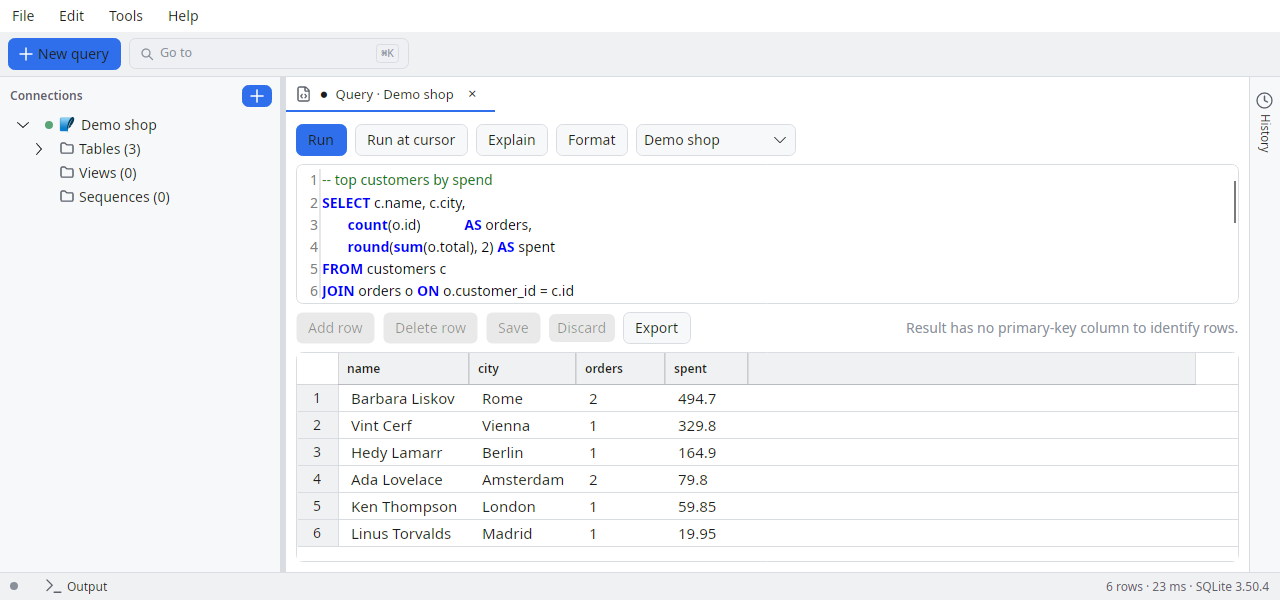
A real editor with syntax highlighting and multiple tabs. Open and save .sql files with a dirty-marker, a recent-files menu and drag & drop.
  • Open/Save/Save-As with Ctrl+O / Ctrl+S
  • Scope-aware completion — table aliases, per-dialect functions and FK join conditions
  • Paged results — an unbounded SELECT loads a page at a time
  • Session persistence — reopen exactly where you left off
DataTray — query editor
The SQL query editor showing a SELECT with a JOIN and GROUP BY, and its result grid with the top customers by spend
Result grid

Edit results, commit changes

Treat the result grid like a spreadsheet. Change a value, add a row, and commit all pending edits in one action — DataTray writes the statements for you.
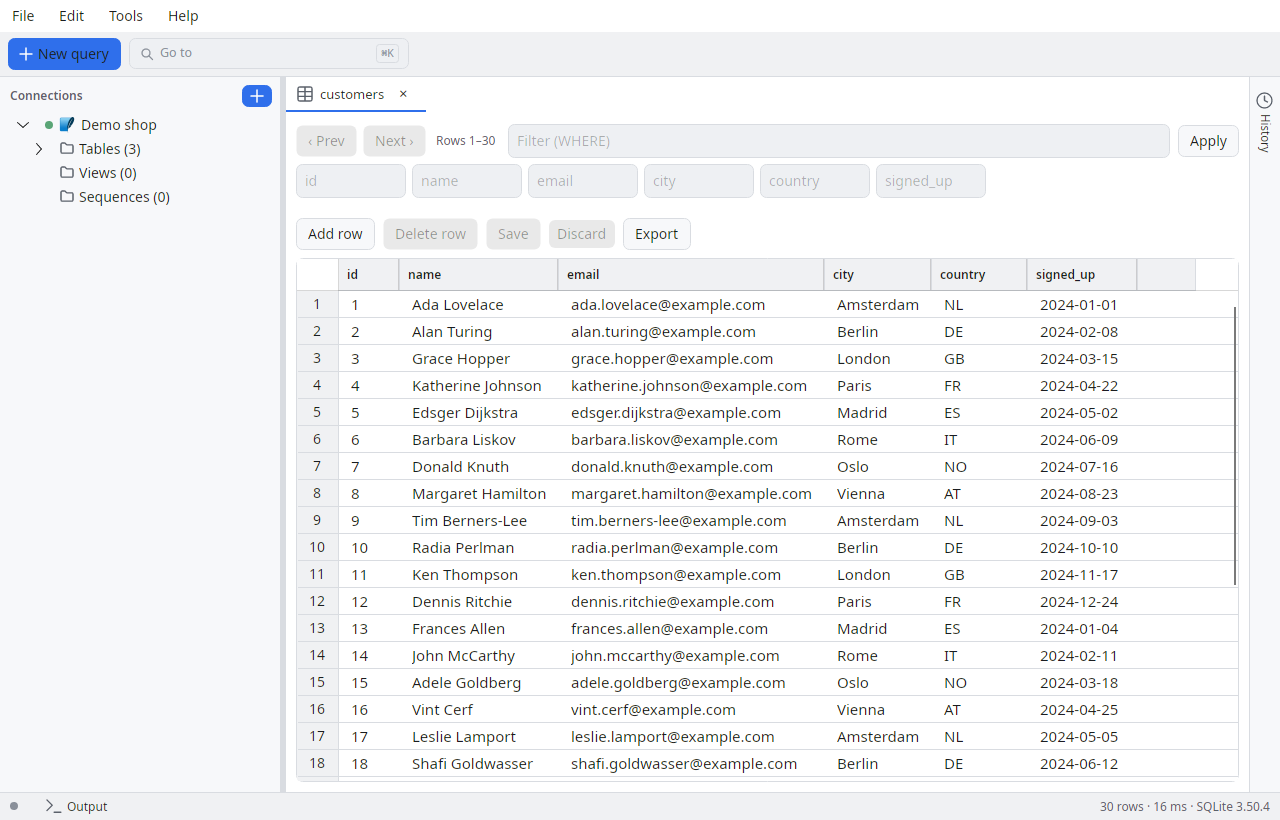
  • Inline editing with a clear pending-changes indicator
  • Editors that match the column — a checkbox for booleans, a date picker for dates
  • NULL and the empty string stay distinguishable — see and set both deliberately
  • Commit with Ctrl+Shift+S
  • Dense, fast rows built for large result sets
DataTray — editable result grid
An editable result grid of customer records with Add row, Delete, Save and Export actions above it
Import & export

Move data in the format your team expects

Import from CSV, export to CSV, JSON or SQL INSERT, and for SQL Server export a full BACPAC/DACPAC — powered by the tool plugins, in-process and without external tooling.
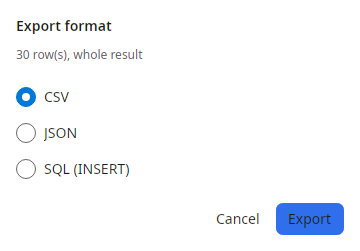
  • CSV, JSON and SQL INSERT export — plus copy-as Markdown or HTML
  • SQL Server BACPAC/DACPAC via DacFx
  • Universal Backup & Restore across engines
The export dialog offering CSV, JSON and SQL INSERT for the whole result set
Your workspace

Arrange the toolbar, then pick how results read

The row of buttons at the top of the window is yours to order. And a result set is no longer stuck as a grid — a View switcher sits beside the result tabs whenever a viewer plugin has something better to offer.

  • Settings ▸ Toolbar — drag to reorder, untick to hide, reset in one click
  • Hiding a button takes nothing away — the action keeps its menu entry and its shortcut
  • A narrow window moves the overflow into a “…” menu instead of clipping it — your order is the priority order
  • Grid stays the default and always comes first; a viewer is read-only, so switching never risks a pending edit
Basic Result Viewers — store-only
// A viewer declares its type and is handed a
// read-only snapshot of the current result set.
"type": "viewer"

// JSON — a row as an object tree; a text cell that
// itself holds JSON is parsed into a subtree rather
// than shown as one long escaped string.

// Image — renders a binary cell as a picture.

// A viewer that has nothing to say about a result
// set drops out of the switcher entirely.
SQL Server operations

Run the server, not just the queries

Agent jobs, a live Activity Monitor and real index maintenance — the SSMS jobs you keep a second tool open for, on the node menus where you already are.

  • Start, stop, enable and disable Agent jobs straight from the tree — and create or delete them
  • A full job Properties dialog: General, History, Steps, Schedules, Alerts, Notifications and Targets
  • A real SSIS step editor that reads steps SSMS wrote back, rather than overwriting what it can't model
  • Activity Monitor — four graphs over five sortable grids, filtered by database or to blocking sessions only
  • Index Properties and maintenance: rebuild, reorganize, disable — or Script the T-SQL to a tab without running it
Agent job — schedule, as the dialog spells it
// The Schedules page writes the sentence it is
// about to save, as you build it:

every 2 weeks on Mon, Wed, Fri,
every 30 minutes between 08:00:00 and 17:00:00

// Read it, rather than infer it from six
// numeric fields.

// Activity Monitor refreshes on a timer —
// 10s by default, 5s–60s, or off. Read-only
// apart from Kill Process, which asks first.
Extensibility & AI

Grow the app — and let AI help, safely

Add engines and tools through runtime plugins. Turn on the optional MCP server and AI assistants can query your data with guardrails you set.

  • Isolated plugin loading — a plugin can't destabilise the host
  • Tools like Schema Diff — compare two databases and script the migration
  • Five plugin types: providers, tools, MCP servers, viewers and extensions
  • MCP server is off by default — access is opt-in per connection
  • Read-only or read-write per connection (DDL always rejected), loopback + bearer token, and an opt-in audit log
Explore the plugin ecosystem →
settings.json — AI access
// off by default — you opt in
"McpEnabled":     true,
"McpPort":        5488,   // loopback only (127.0.0.1)
"McpRequireAuth": true,   // bearer token required
"McpMaxRows":     200,    // hard server-side row cap
"QueryLogMcp":    true    // audit every AI query

// Access is per connection, fail-closed:
//   AiAccess = None (default) | ReadOnly | ReadWrite
//   DDL is always rejected · result secrets redacted

Keyboard-first, and rebindable

Every action has a stable id and a default gesture you can change.

Run queryExecute the whole query
F5
Run at cursorExecute just the statement at the cursor
Ctrl + Enter
Open .sql fileLoad a query from disk
Ctrl + O
Save queryWrite the current tab back to its file
Ctrl + S
Commit grid editsPersist pending edits to the database
Ctrl + Shift + S
New query tabOpen a fresh editor tab
Ctrl + T

Ready to try it?

Download DataTray and connect your first database in under a minute.